

Introduction
PUBG Mobile is a battle royale game where performance depends on device settings, control setup, and sensitivity configuration. Correct settings can improve movement control, aiming accuracy, and overall gameplay stability. This guide explains all important settings in a structured way so players can adjust the game based on their device and play style.
Understanding Settings in PUBG Mobile
Settings in PUBG Mobile are divided into multiple categories:
- Graphics settings
- Controls settings
- Sensitivity settings
- Audio settings
- Advanced settings
Each category affects a different part of gameplay.
Graphics Settings
Graphics Quality
Graphics quality controls how the game looks and performs. Lower settings improve performance, while higher settings improve visual detail.
Options include:
- Smooth
- Balanced
- HD
- HDR
- Ultra HD (supported devices only)
For stable gameplay, many players choose lower settings to reduce lag.
Frame Rate
Frame rate affects how smooth the game runs.
Options include:
- Low
- Medium
- High
- Ultra
Higher frame rates improve movement response and aiming speed.
Style Settings
Style settings change visual appearance:
- Classic
- Colorful
- Realistic
- Soft
This setting does not affect gameplay performance.
Anti-Aliasing
This setting smooths edges of objects. Turning it off can improve performance on low-end devices.
Shadows
Shadows increase visual detail but can reduce performance. Many players turn this off for stable gameplay.
Control Settings
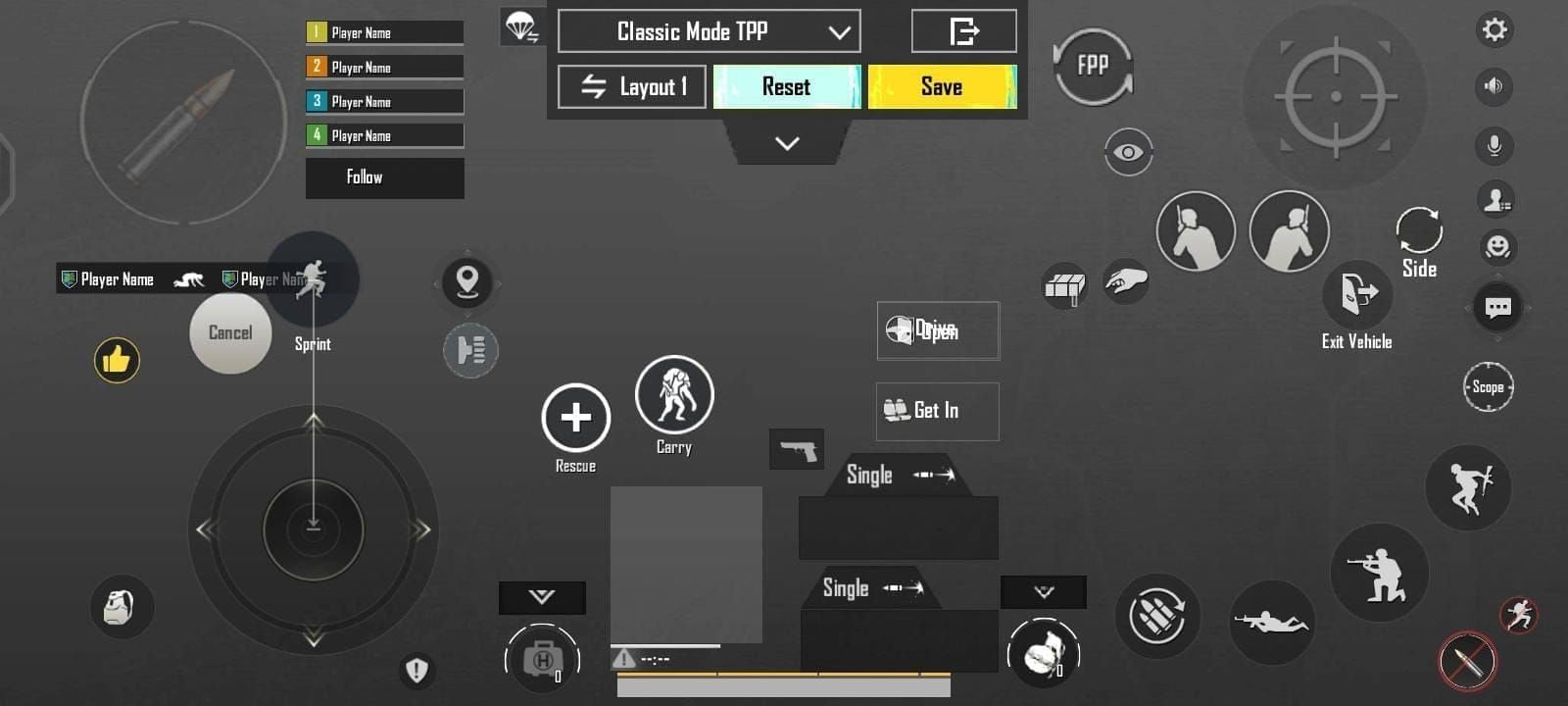
Layout Customization
Players can adjust button positions on the screen. This includes:
- Fire button
- Movement joystick
- Aim controls
Custom layouts help improve reaction time.
Gyroscope Controls
Gyroscope allows players to control aim using device movement.
Types:
- Always on
- Scope only
- Off
Gyroscope helps improve recoil control.
Auto Pickup
Auto pickup collects items automatically when moving over them. Players can adjust:
- Weapon pickup
- Ammo pickup
- Attachment pickup
Sensitivity Settings
Camera Sensitivity
Camera sensitivity controls movement speed of view without aiming.
ADS Sensitivity
ADS sensitivity controls movement while aiming down sights.
Gyroscope Sensitivity
Gyroscope sensitivity affects device movement control.
Typical categories:
- No scope
- Red dot
- 2x, 3x, 4x scopes
- Sniper scope
Adjusting sensitivity helps control recoil.
Audio Settings
Sound Effects
Sound settings control in-game audio such as footsteps, gunfire, and vehicles.
Voice Chat
Voice chat allows communication with teammates. Settings include:
- Microphone volume
- Speaker volume
- Voice channel selection
Graphics and Performance Balance
Low-End Device Settings
For low-end devices:
- Graphics: Smooth
- Frame rate: Medium or High
- Shadows: Off
- Anti-aliasing: Off
Mid-Range Device Settings
For mid-range devices:
- Graphics: Balanced
- Frame rate: High
- Shadows: Optional
High-End Device Settings
For high-end devices:
- Graphics: HDR or Ultra HD
- Frame rate: Ultra
- Shadows: On (optional)
Control Layout Types
Two-Finger Layout
Basic layout used by new players.
Three-Finger Layout
Improves movement and shooting control.
Four-Finger Layout
Used for advanced control and faster reaction.
Gyroscope Usage Strategy
Recoil Control
Gyroscope helps control weapon recoil during shooting.
Aim Adjustment
Small device movements adjust aim without using screen swipe.
Scope Control
Higher scopes require more sensitivity adjustment.
Sensitivity Optimization Steps
Step 1: Start Default
Begin with default settings.
Step 2: Adjust Camera
Increase or decrease camera movement based on comfort.
Step 3: Adjust ADS
Test aiming stability during shooting.
Step 4: Test Gyroscope
Use training mode to adjust recoil control.
Training Mode Settings Practice
Players should use training mode to:
- Test weapons
- Adjust sensitivity
- Practice recoil control
- Test control layout
This helps refine settings before competitive matches.
HUD Layout Optimization
Important Elements
HUD includes:
- Fire button
- Movement joystick
- Aim scope
- Inventory
Placement Strategy
Buttons should be placed based on finger reach for faster reaction.
Network Settings
Stable Connection
Stable internet improves gameplay performance.
Server Selection
Players should select closest server for lower ping.
Device Optimization
Background Apps
Closing background apps improves performance.
Storage Management
Free storage helps reduce lag during gameplay.
Battery Settings
Power-saving mode can reduce performance in some cases.
Advanced Settings
Peek and Fire
Allows shooting while peeking from cover.
Quick Scope
Improves fast aiming during combat.
Lean Settings
Helps reduce exposure during fights.
Common Mistakes in Settings
Using High Graphics on Low Devices
This causes lag and frame drops.
Ignoring Sensitivity Setup
Default sensitivity often reduces aiming control.
Wrong Control Layout
Poor layout reduces reaction speed.
Pro Player Settings Approach
Professional players focus on:
- Stable frame rate
- Custom control layout
- High sensitivity control
- Gyroscope usage
Update Impact on Settings
Game updates can change performance. Players should recheck settings after updates.
Conclusion
PUBG Mobile settings affect performance, aiming, and control. Proper configuration improves gameplay stability and reaction time. Players should adjust graphics, sensitivity, and controls based on device capability and practice regularly in training mode to maintain consistent performance.





Leave a Reply